
API playground
The API playground is the best place to learn, develop, and test your GraphQL requests against the monday.com platform API. It provides a visual editor with real-time response previews, sample queries, schema exploration, and built-in AI assistance - all without leaving your browser.
Access the playground
If you're already logged into a monday.com account, you can access the playground without needing to re-authenticate. If you don't have an account yet, create a free developer account first.
- Open the Developer Center.
- Click API playground from the left-side menu.
- Start testing your queries!
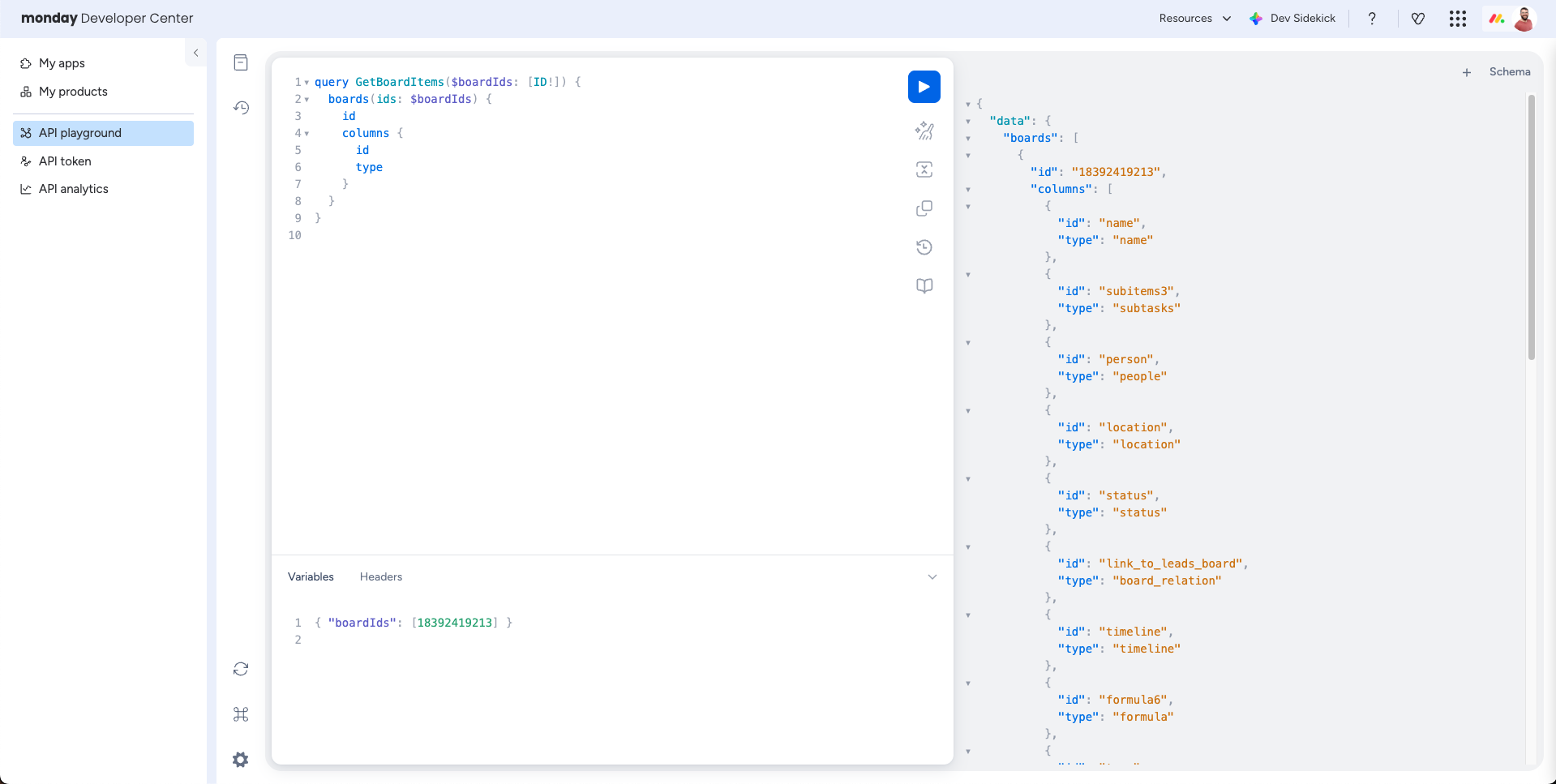
Layout
The playground is divided into two sections:
- Left panel - the query editor where you write your GraphQL requests. Use the Variables and Headers tabs at the bottom of the editor to pass dynamic values and custom headers.
- Right panel - the response viewer that displays the server's response after you execute a query.
Central toolbar
The toolbar between the two panels contains the core actions you'll use most.
Execute query
The Play button in the center of the toolbar sends your request to the API. The response will appear in the right panel.
Mutations affect live dataIf your API call includes a mutation, any changes (creating, updating, or deleting data) will actually happen inside monday.com. Be careful not to modify or delete production boards while testing.
Prettify
Click the Prettify button to auto-format your query. It fixes indentation and line breaks so messy queries become readable again.
Copy query
The Copy button copies your current query to the clipboard so you can paste it into your code, documentation, or a message.
API version selector
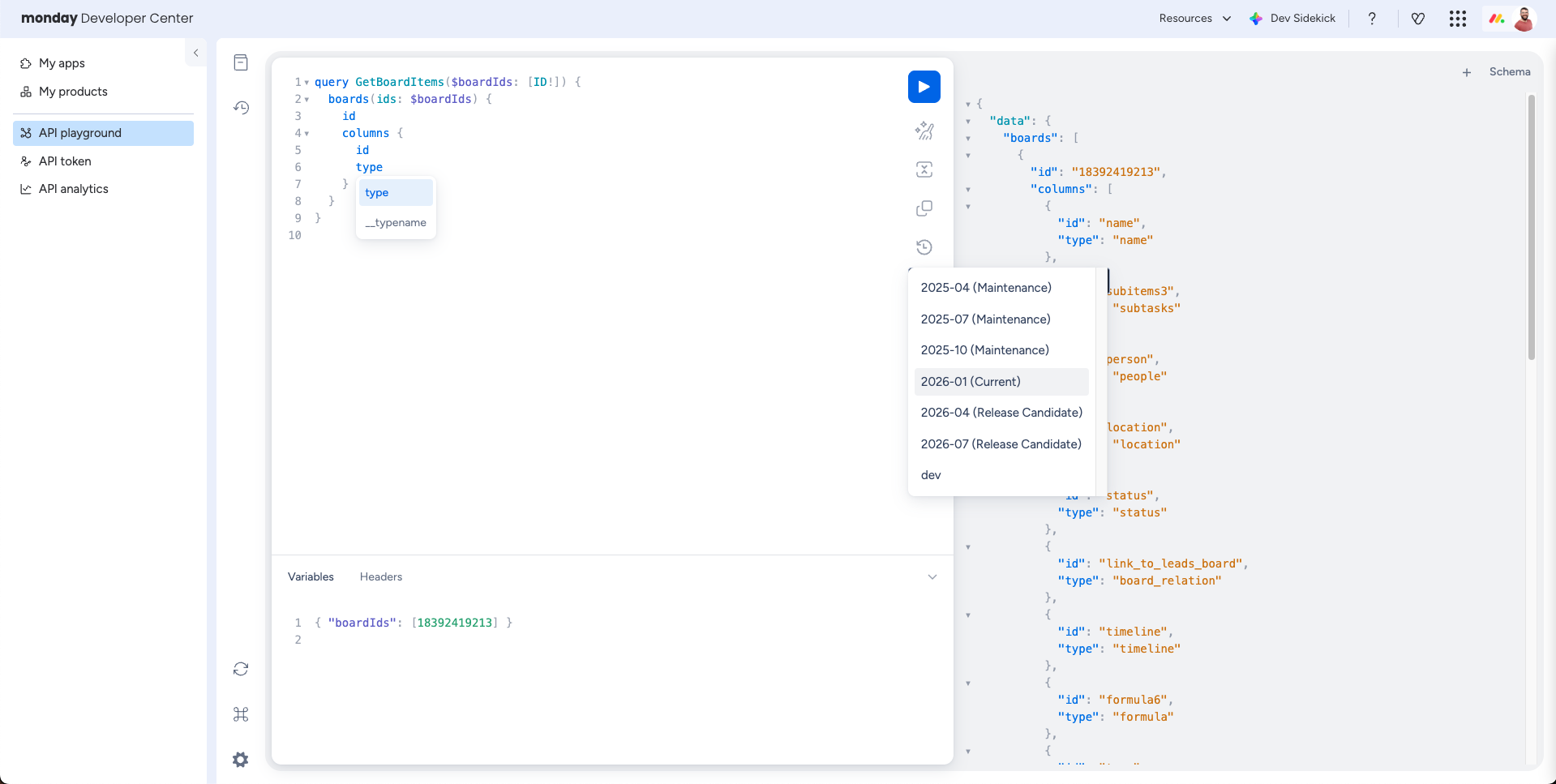
Click the clock icon to switch between API versions. You can:
- Try upcoming features through the release candidate version.
- Test against older versions if your integration still uses them.
The playground defaults to the current stable version.
Sample queries
Click the book icon in the central toolbar for a library of pre-built query templates, including common operations like getting column values and creating items. Each sample opens in a new tab, so you won't lose any work in progress.
Ask Dev Sidekick
The Dev Sidekick button at the top of the playground opens an integrated developer AI assistant that is aware of your current query, variables, and response. You can ask it to:
- Help write a query or mutation from scratch.
- Debug a failing request - or click Fix with AI when an error appears.
- Answer general questions about the API and apps framework.
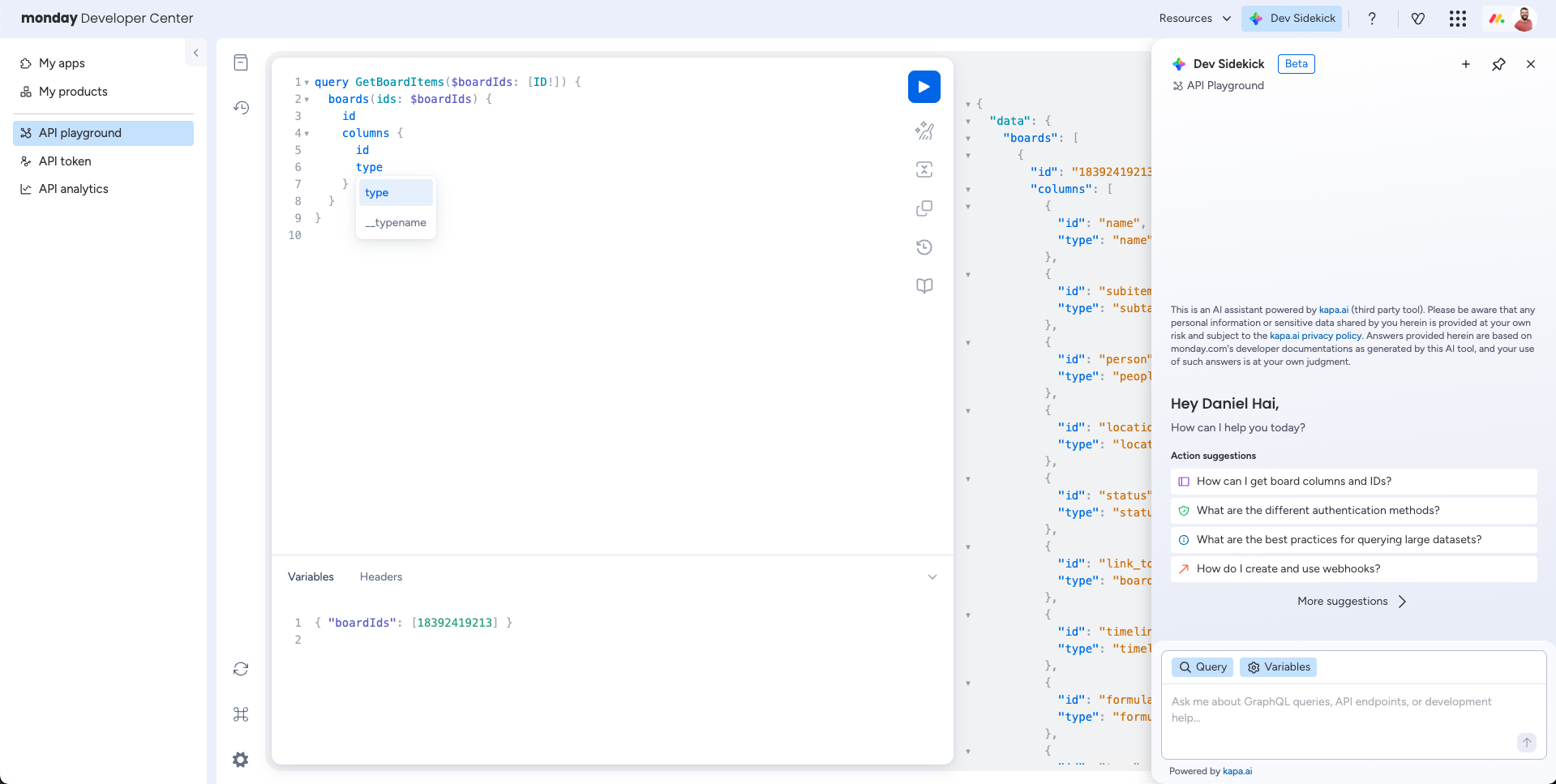
Each suggested query includes an Apply to query button that loads it directly into the editor.
Download schema
The button in the top-right corner lets you download the monday.com GraphQL schema in different formats. You can use the downloaded schema with tools like Voyager to visualize entity relationships, or to generate typed API clients in different programming languages.
You can also retrieve the schema programmatically. Refer to the GraphQL overview for available endpoints and format options.
Left sidebar
The left sidebar provides tools for exploring the API and managing your workflow.
Schema explorer
The book icon opens the schema explorer, which lets you browse all available fields, their types, arguments, and whether they are nullable. It's a quick way to understand the shape of any object without leaving the playground.
History
The history button saves every request you execute. You can go back to any previous query at any time - even if you've overwritten it or made mistakes since then.
Keyboard shortcuts
The shortcuts menu lists all available keyboard shortcuts. A particularly useful one is ⌘K (Mac) / Ctrl+K (Windows), which opens an inline autocomplete that lets you preview available fields and attributes directly inside the editor.
Configuration
The configuration menu lets you toggle between dark mode and light mode.
Public playground
The public playground offers a subset of the features listed above and requires manual authentication. It's useful if you have an API token but don't have access to the account's UI to log in.
- Open the public playground.
- Retrieve your API token and paste it into the modal.
- Start testing your queries!
Updated 8 days ago