
Dynamic connectors
Let account admins approve additional MCP connections and their redirect URIs, beyond the pre-approved third-party agents
Let users request admin approval when an external service tries to connect to their monday.com account as an additional connection. When admin approval is required, nothing is connected until an admin approves the request.
Early access. This flow is in early access. Existing access tokens may continue working for up to 24 hours after an admin revokes approval.
Overview
The monday MCP server lets AI assistants, agents, and other MCP clients work with monday.com data on behalf of an authenticated user.
The hosted MCP permission enables a set of pre-approved third-party agents, such as Claude and ChatGPT. Those agents connect through their usual flow. See Compatible MCP clients.
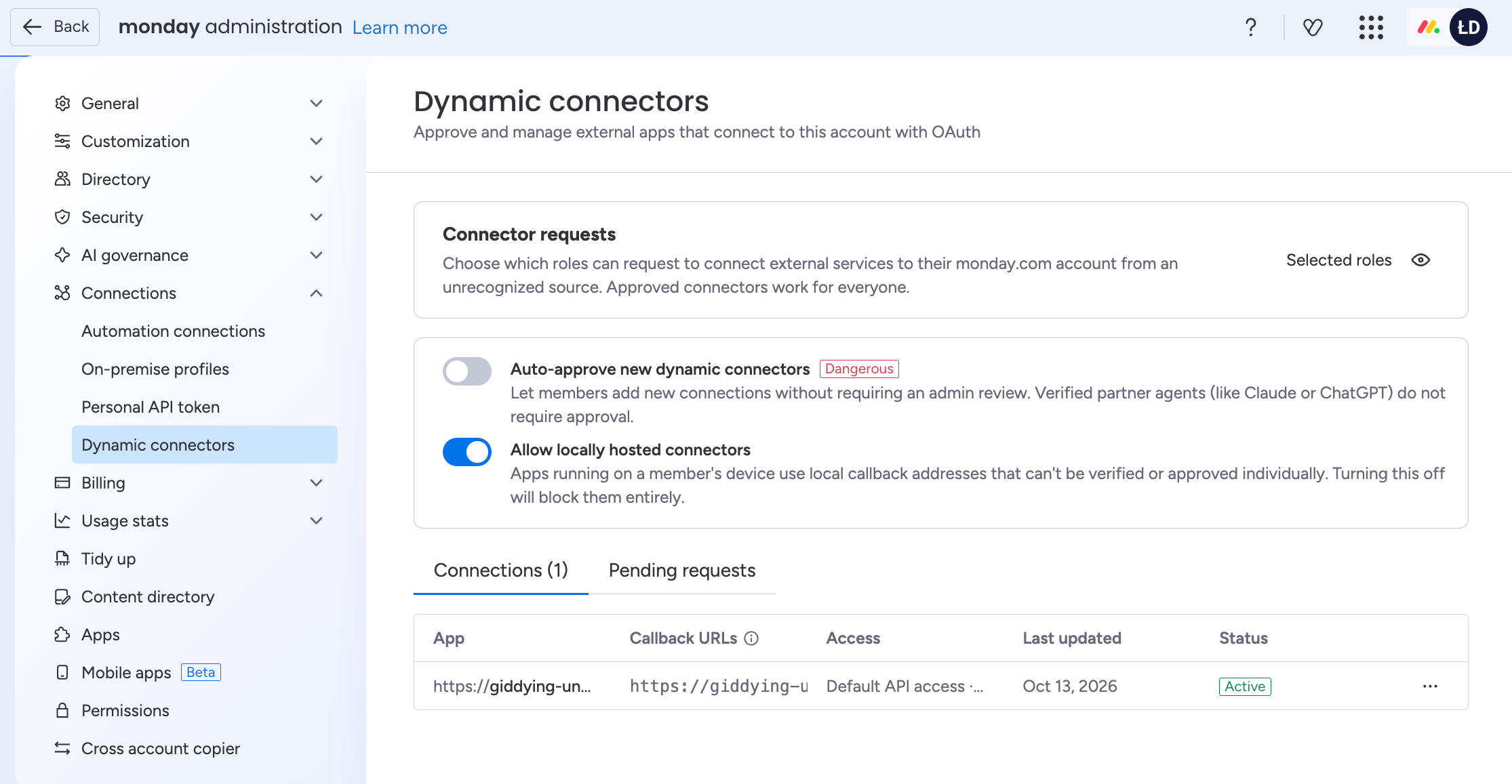
Dynamic connectors let an account admin approve additional connections and their redirect URIs. Some of these clients use dynamic client registration (DCR) to register an OAuth client automatically when connecting.
Any developer can let customers add a connection this way. The customer starts the connection, and their account admin reviews the redirect URIs and approves the connector for the account. After approval, users complete the normal OAuth authorization flow. Nothing is connected while approval is pending.
This approval flow extends the DCR mechanism in Make your MCP integration publicly available. During early access, these clients can register through DCR and proceed to an approval screen. Users request admin approval for the connection. Your account admin reviews the redirect URIs and decides whether to approve the connection for your account.
Before you connect
Configure your MCP client using the Integrate with the monday MCP server guide:
- Server URL:
https://mcp.monday.com/mcp - Transport: Streamable HTTP
- Authentication for this flow: OAuth 2.0 with DCR
The connecting user also needs MCP access on the account.
Connector approval and MCP access are separate controls. Approving a dynamic connector does not grant a user MCP access or expand their access to monday.com data. MCP actions continue to respect the authenticated user's permissions.
Request approval for a connector
- Click 'connect' to monday.com from your MCP client.
- If the source has not been previously approved by ad admin as a dynamic connection, the connection needs approval, the authorization screen displays Admin approval required. Review the displayed redirect URLs.
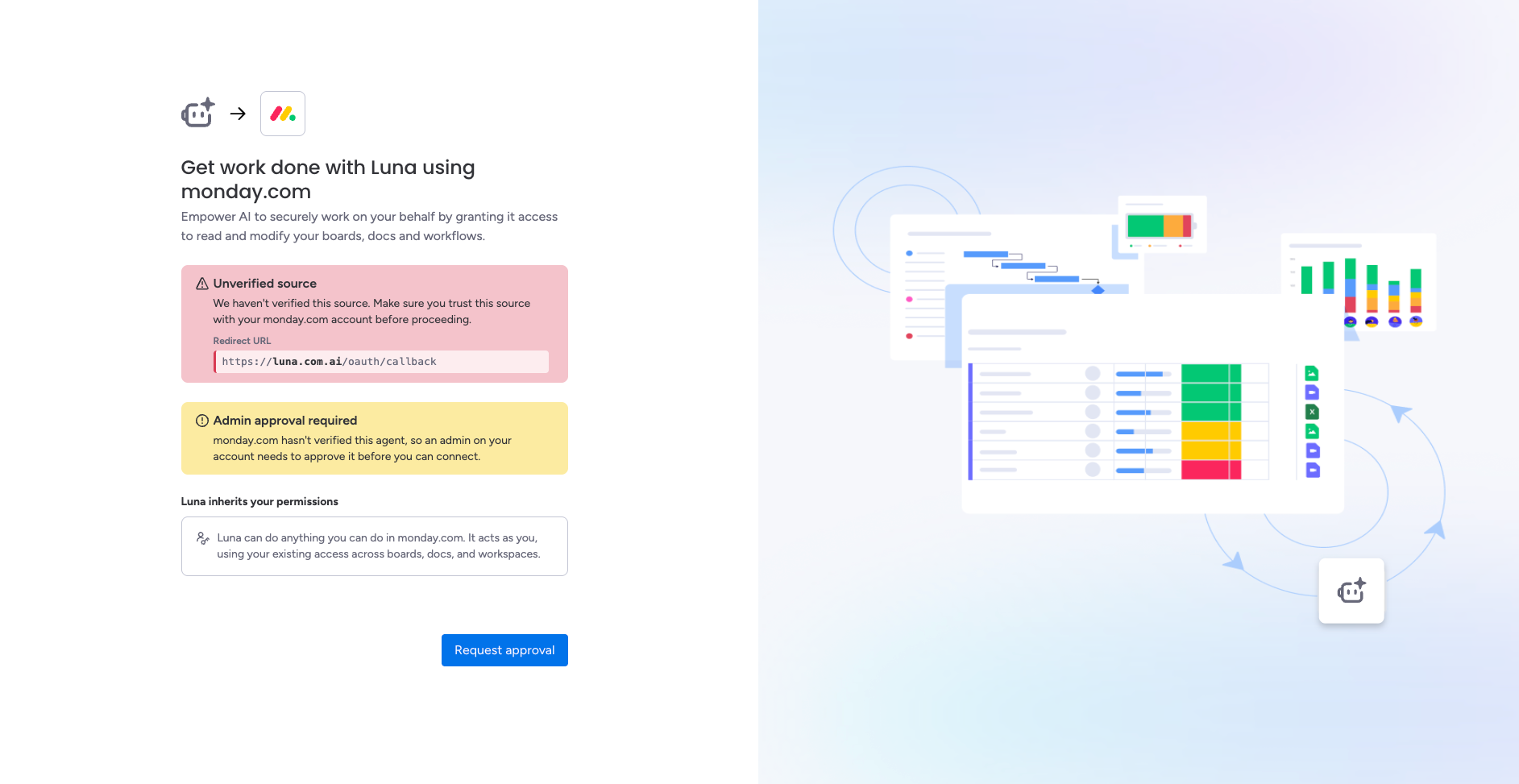
Select Request approval.
The screen confirms Request sent to your admins. Contact your admin so they know a request is waiting.
After your admin approves the request, start the connection again from your MCP client.
Review the authorization screen and select Authorize to finish connecting.
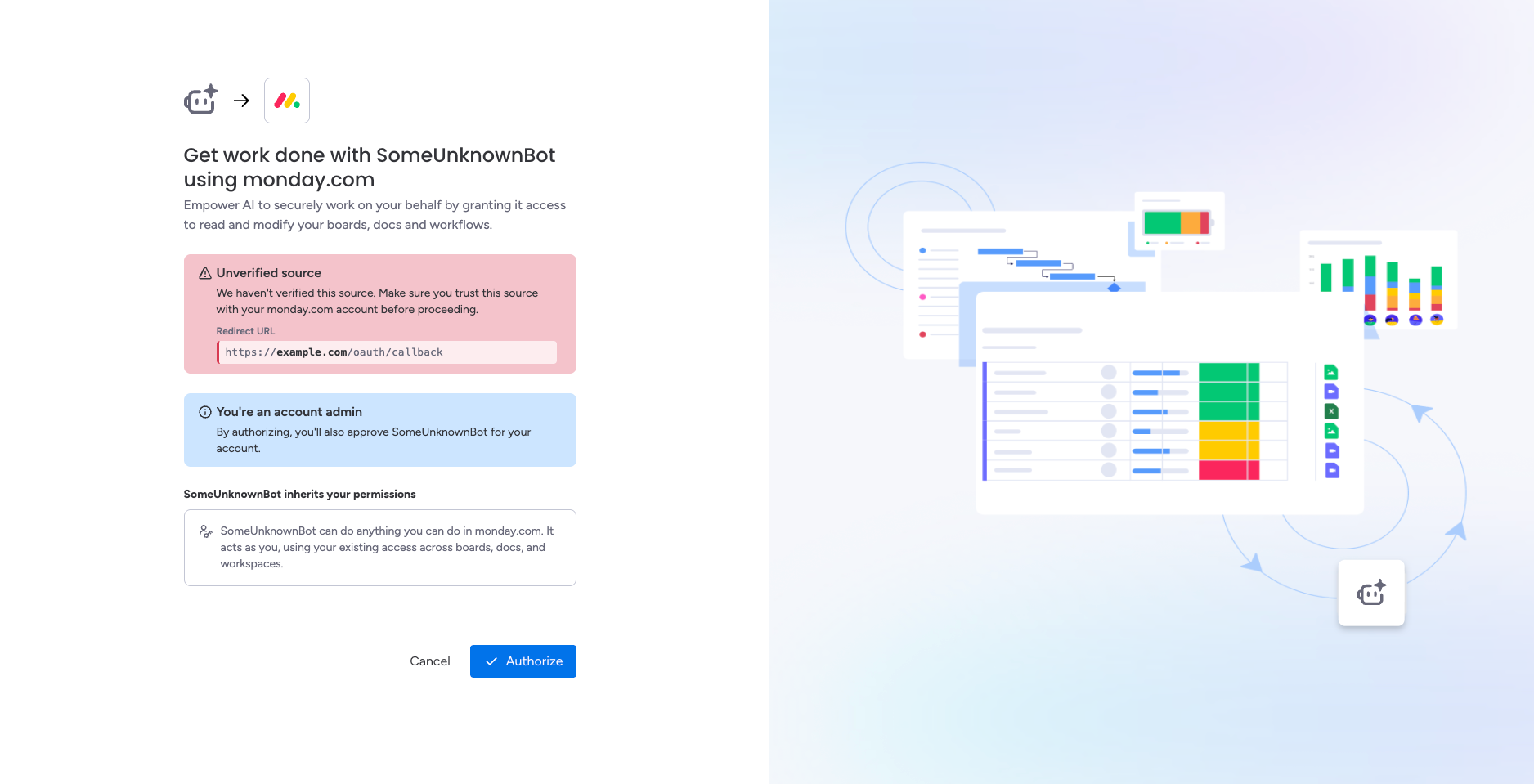
Nothing is connected while the request is pending. After an admin approves it, reconnect and complete authorization.
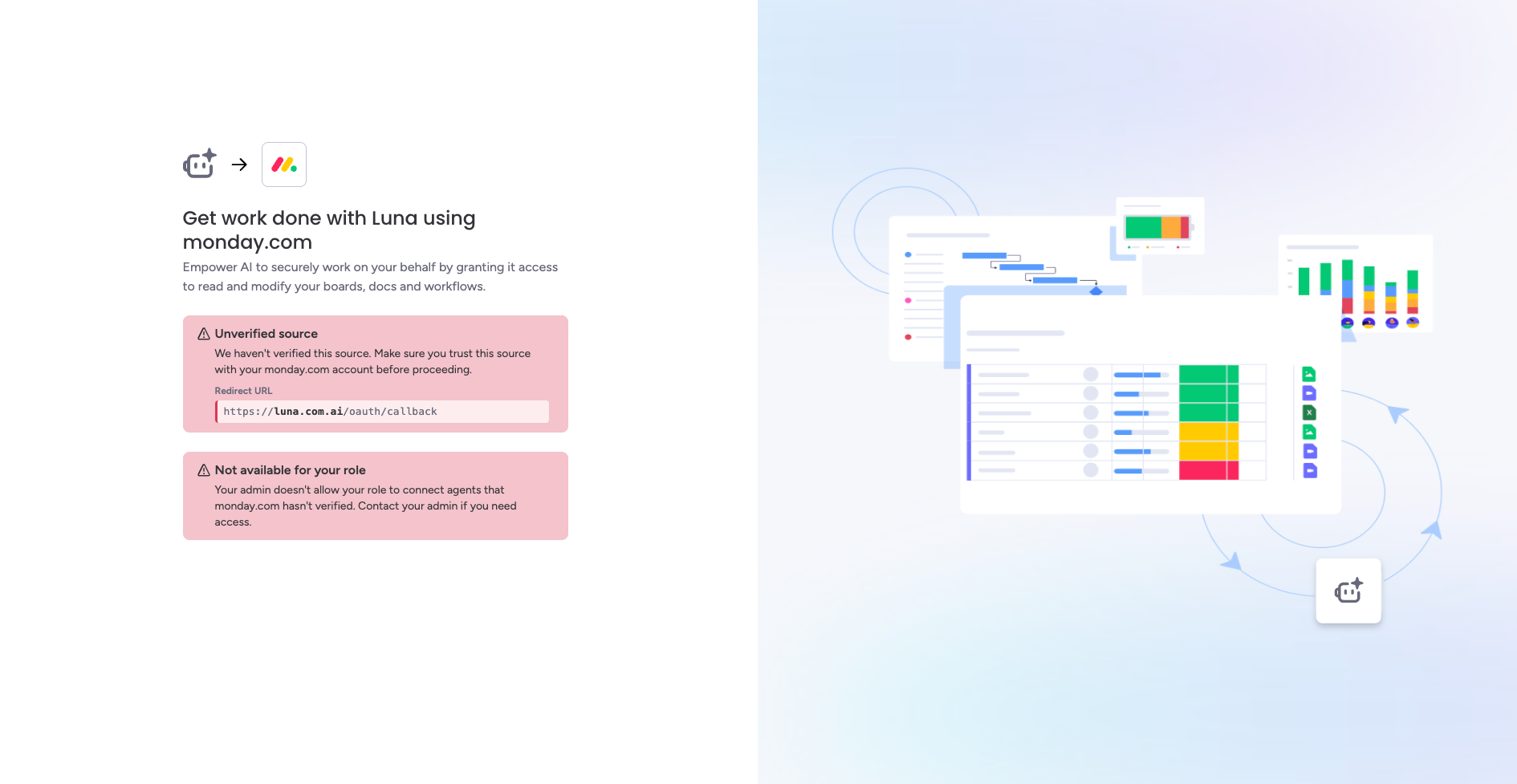
If Request approval is unavailable for your role, contact your admin. Your role's request permission determines whether you can submit a new request. It does not prevent you from using a connector that is already approved, provided you have the required MCP and data permissions.
For accounts with no user request approval, the screen will look like below
Connect as an account admin
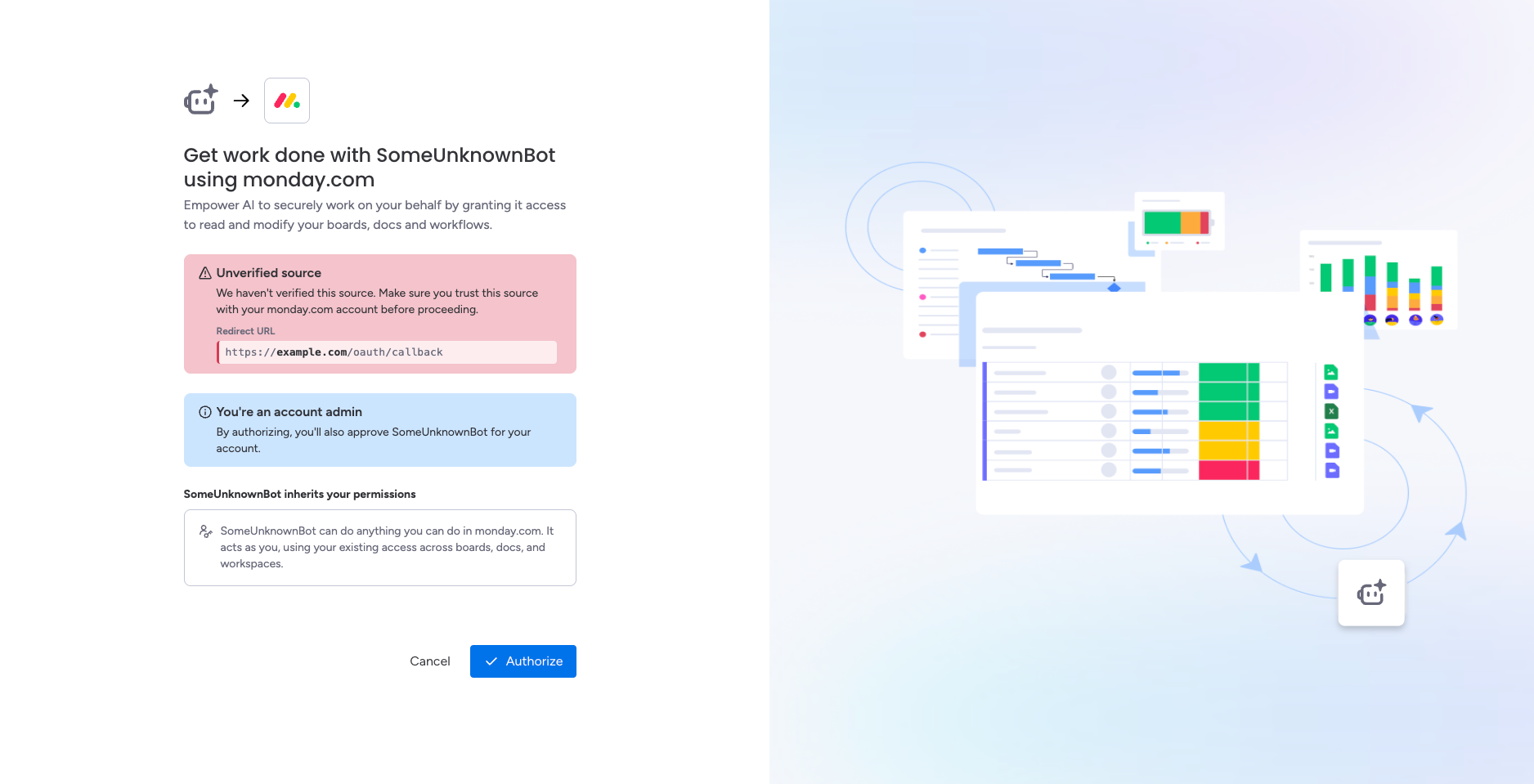
An account admin can approve a new connector directly from the authorization screen. The screen explains that selecting Authorize will also approve the connector for the account.
Review the connector and its redirect URL before authorizing. If an admin previously rejected the connector, reopen its request in administration before trying again.
Review and manage connectors
Open monday administration → Connectors → Dynamic Connectors. Admins also receive an email notification for any new connector requests.
Review pending requests
- Select Pending requests.
- Review the connector's domain, full callback URLs, and access summary.
- Select Approve to allow the connector, or Reject to decline the request.
- Let the requester know the outcome. After approval, they must reconnect from their MCP client and complete authorization.
The connector's domain and callback URLs identify where the OAuth sign-in response will be sent. Check that they match the service you intend to approve.
Manage existing approvals
The Connections tab shows resolved requests and their status. Use a connector's actions menu to manage it:
| Status or change | Available action |
|---|---|
| Active connector | Revoke access |
| Rejected request | Reopen request, then review it again |
| Revoked connector | Restore access |
| Approved connector with additional callback URLs | Approve new URLs |
Approval applies to the exact callback URLs listed for the connector in your account. A new callback URL needs approval even if the domain was previously approved. New URLs are marked New, and the connection can display New URL pending.
Existing approved callback URLs remain approved while additional URLs await review.
Choose who can request approval for external connections
In Connector requests, choose who can request approval for additional external connections. On Enterprise, use the edit control to select which account roles can submit requests, including custom roles.
Members can request approval by default. Viewers and guests cannot request approval by default. Account admins can approve connectors directly, and their approval capability cannot be disabled through this setting.
Plans without role customization use the default permissions. The same request permission is also available under administration's account permissions as Request approval for third-party apps.
Changing request permissions affects new requests and eligibility for automatic approval. Connectors already approved for the account remain usable, subject to each user's MCP access and existing monday.com permissions.
Configure automatic approval and local connectors
| Setting | Behavior |
|---|---|
| Auto-approve new dynamic connectors (dangerous, use only for development) | Allows users with request permission to connect new connectors without individual admin review. Connections made through automatic approval are not recorded in the Connections list. |
| Allow locally hosted connectors | Controls connectors running on a user's device that use local callback addresses. These connectors are managed as a category rather than approved individually. |
Automatic approval can continue to allow a connector even after its individual approval is revoked. Turn it off when you need connections to depend on individual admin approvals.
Understand the approval screen
| Message | What to do |
|---|---|
| Admin approval required | Review the connector and select Request approval if available. |
| Request sent to your admins or Request pending | Contact your admin and wait for review. After approval, reconnect from your MCP client. |
| Request declined | Your admin rejected the connector. Contact them if you need the request reconsidered. |
| Access revoked | Contact your admin to restore the connector's approval. |
| Not available for your role | Your role cannot submit an approval request. Ask your admin to review your request permission. |
| Redirect URL needs re-approval | The connector is using a callback URL that has not been approved. Request approval for the new URL. |
| Local applications blocked | Your account's settings block local connectors. Contact your admin. |
| It looks like you don't have access yet | The user needs MCP access on the account. Approving a dynamic connector does not grant that access. |
The source notice shows the external connection's redirect URLs, emphasizes the host, and marks a new URL so you can review the destination before proceeding.
Early-access limitations
Revocation takes effect at token refresh
When an admin revokes a previously granted connector approval, existing access tokens are not revoked immediately.
Approval is checked again at the next token refresh. If the connector is no longer allowed by the account's policy, the refresh is denied. An existing access token can continue working until it expires, for up to 24 hours after revocation.
For example, if an admin revokes approval just after a token is issued, the connector may continue using that token for almost another 24 hours. During early access, treat revocation as taking effect at token refresh.
For MCP client developers
You can ship an MCP client and let customers add the connection. Successful DCR registers the client. The customer's account admin approves the connection and its redirect URIs on the monday.com authorization screen, and the user completes authorization after that approval.
This extension uses the same standard OAuth discovery, DCR, and authorization code flow with PKCE described in Make your MCP integration publicly available. The account admin approval step takes place during OAuth authorization, after client registration.
Account approval and user authorization must still complete before access tokens are issued. If approval is required, the monday.com authorization screen handles the request. After approval, the user must start a fresh connection from your client.
Keep callback URLs stable. Adding or changing a URL can trigger another approval review. If token refresh returns invalid_grant because the connector is no longer approved, ask the user to contact their account admin.
Account approval allows that additional connection and its redirect URIs for the account. Pre-approved third-party agents are covered by the hosted MCP permission and use their usual connection flow.
Related resources:
Updated 7 days ago