
Set up enterprise-managed authorization for Claude
Turn on Claude-issued managed authorization so members of your Claude organization use monday.com in Claude without signing in or approving access one by one.
With enterprise-managed authorization for Claude, an admin connects your Claude organization to monday.com once. Members of your Claude organization then find monday.com already connected in Claude. They don't sign in to monday.com or approve access one by one.
Claude confirms who each member is and signs the request with an Issuer URL that belongs to your Claude organization. monday.com trusts that Issuer URL only for the account that registered it, and finds the member in that account by email. Every tool call runs as the member, with their existing monday.com permissions.
This setup doesn't need an identity provider or single sign-on (SSO). Claude offers it only to organizations that don't sign in to Claude through Okta. If yours does, use enterprise managed auth with Okta instead. Each monday.com connector in Claude uses one identity source at a time.
Beta. Enterprise-managed authorization for Claude is in beta, because Claude-issued managed authorization is in beta in Claude. It may change before general availability. In Claude, it's also called auto-connect.
Before you start
In monday.com:
- Your account is on the Enterprise plan.
- You're an account admin, or your custom role has the Access the Security section permission. A custom role with only Access the Apps admin section sees the setting read-only.
- Your email domain is claimed and verified under Administration > Security > Domains. monday.com connects only members whose email is on a domain your account claimed.
In Claude:
- Your organization is on the Team or Enterprise plan.
- Your organization doesn't sign in to Claude through Okta. Claude doesn't offer Claude-issued managed authorization to those organizations.
- You're an Owner or Primary Owner of the organization.
- The monday.com connector (
https://mcp.monday.com/mcp) is added under Organization settings > Connectors.
For each member who connects:
- They're an active user in your monday.com account: they accepted their invitation and aren't deactivated.
- They're a user type that can sign in to monday.com. Viewers connect with the same read-only access they have in monday.com. Agent, API, service and portal users can't connect. Guests connect only if their email is on a domain your account claimed.
- Their Claude email is the same as their monday.com email. Letter case doesn't matter, but dots and
+tags do. - Their email is on a domain your account claimed.
One person can do both the monday.com and the Claude steps. If you're not an admin of both, keep the other admin on a call or share this guide with them.
Step 1: Copy the Issuer URL from Claude
- In Claude, go to Organization settings > Connectors and select monday.com.
- On the Configuration tab, click Set up next to Managed authorization.
- Under Identity source, select Claude-issued.
- Copy the Issuer URL. It looks like
https://identity.anthropic.com/issuers/...and is unique to your Claude organization. Copy the whole URL.
Keep this screen open in its own tab. You come back to it in Step 3.
Step 2: Turn it on in monday.com
-
In monday.com, go to Administration > Connections > Dynamic connectors and open the Advanced tab. If your account shows AI connectors there instead, go to AI connectors > Dynamic connectors > Advanced. You can also go straight to
https://<your-account>.monday.com/admin/integrations/third-party-apps?tab=advanced. -
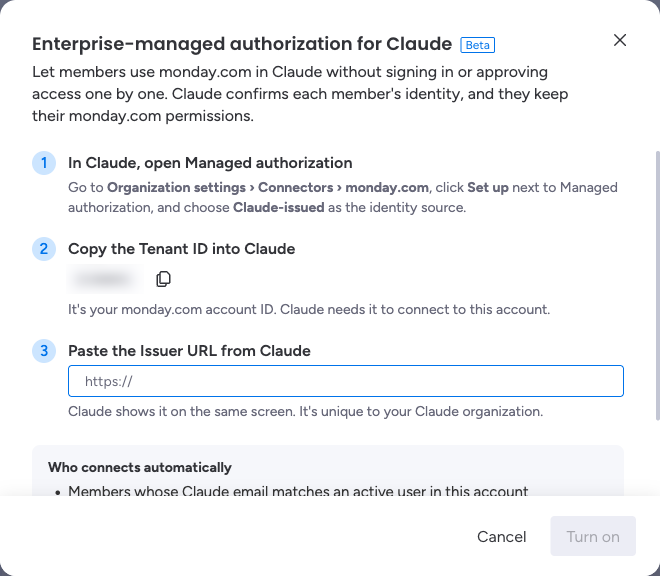
Next to Enterprise-managed authorization for Claude, click Set up.

-
Copy the Tenant ID with the copy button. It's your monday.com account ID. You paste it in Claude in Step 3.
-
Paste the Issuer URL from Step 1 into Issuer URL.
-
Click Turn on.
The setting now shows On and the Issuer URL you saved.
Step 3: Test and enable in Claude
- Go back to the managed authorization setup in Claude.
- Paste the Tenant ID from Step 2 into Tenant ID (optional). monday.com needs it: without it, every connection is rejected.
- Click Run test (Test connection in some versions of Claude) and check that every stage passes. The test connects as you, so your own Claude email must meet the member requirements. If a stage fails, see Troubleshooting.
- Continue to the Roles step (Continue, or Enable and continue) and choose which roles connect to monday.com automatically. All roles are selected by default.
- If Claude shows a Scopes step, select all monday.com scopes or none. monday.com grants the full scope set, so a partial selection is rejected.
- Click Enable.
Step 4: Check it with a member
Ask a member in one of the roles you chose to:
- Open Claude in your organization and check that monday.com shows as connected. They aren't asked to sign in to monday.com.
- Ask a question that doesn't change anything, for example: "Which monday.com account and user am I connected as?"
- Check that the answer names your account and their own user.
Once that works, let your organization know.
What members can do
- Each member connects as their own monday.com user, with the same permissions they have in monday.com. Managed authorization doesn't give anyone access they don't already have.
- Members who don't meet the requirements, or whose role you didn't choose in Claude, connect monday.com in Claude themselves, as before.
- If an account admin turns off the Claude app for your account, every Claude connection stops, including managed ones.
Change or remove access
- Change who connects automatically: in Claude, edit Applied roles on the monday.com connector.
- Remove one member: remove them from your Claude organization, or deactivate them in monday.com. Either way, they can't connect again, but a connection they already have keeps working until its access token expires, up to 24 hours. Before you reuse a former member's email for someone else, remove the old user from monday.com.
- Use a different Claude organization: turn the setting off in monday.com, then set it up again with the new organization's Issuer URL. An account trusts one Issuer URL at a time.
Turn it off
You can turn it off on either side:
- In monday.com: on the Advanced tab, click the edit button next to Enterprise-managed authorization for Claude, click Turn off, and confirm.
- In Claude: open the monday.com connector's Managed authorization settings and click Disable.
Turning it off in monday.com stops new automatic connections right away and ends the connections members already have within a few minutes. Members then connect monday.com in Claude themselves.
Turning it off only in Claude stops new automatic connections, but connections members already have keep working until their access token expires, up to 24 hours. To end them right away, also turn it off in monday.com.
Troubleshooting
The Advanced tab or the setting isn't there
- Check that you're in Administration > Connections > Dynamic connectors (or AI connectors > Dynamic connectors), as an account admin.
- The setting is in beta and may not be available for your account yet. Contact monday.com support.
Set up is disabled
Your custom role can open Dynamic connectors but doesn't have the Access the Security section permission. Ask an account admin to turn it on, or to add that permission to your role under Administration > Permissions.
"This isn't a Claude Issuer URL. Copy it from Managed authorization in Claude."
The URL you pasted isn't a Claude Issuer URL. Copy it again from Managed authorization in Claude (Step 1), and paste the whole URL.
Claude's test fails
The test shows the stage that failed and what monday.com answered. Most problems show up at the token exchange stage. Find monday.com's message here:
| monday.com's message | What to do |
|---|---|
The assertion is invalid | Check that the setting is On in monday.com, that the saved Issuer URL is the same as Claude's (every character), and that Tenant ID in Claude is your monday.com account ID from Step 2. If all three are right, run the test again in a few minutes. If it still fails, the beta may not be on for your account yet: contact monday.com support. |
No monday user with this email is in this account | Invite the member to your monday.com account with the same email as their Claude account. |
The user's email domain is not claimed by this monday account. Claim it under Administration > Security | Claim and verify the member's email domain under Administration > Security > Domains. Claiming a domain needs the Enterprise plan. |
Claude-issued sign-in needs a monday Enterprise account | Enterprise-managed authorization for Claude is available on the Enterprise plan. |
The monday user has not accepted the invitation yet | Ask the member to accept their monday.com invitation, then try again. |
The monday user is deactivated | Reactivate the user in monday.com, or remove their role from managed authorization in Claude. |
The monday user is not allowed to sign in | The user is a type that can't sign in to monday.com, such as an agent, API, service or portal user. Managed authorization works only for users who can sign in. |
This monday account is disabled | Contact monday.com support. |
An account admin turned this app off for the monday account. Ask them to turn it on in the Connectors settings | Ask an account admin to turn the Claude app back on for your account. |
Enterprise managed auth grants the full monday scope set: select all monday scopes or none | On the Scopes step in Claude, select all monday.com scopes or none. |
Couldn't check the monday user. Try again later | A temporary problem on our side. Run the test again in a few minutes. |
An invalid_grant or invalid_scope error code alone doesn't tell you what's wrong. Read the message next to it.
A member still sees a Connect button for monday.com
- In Claude, check that the member is in your organization and that their role is in Applied roles for the monday.com connector.
- In monday.com, check that they meet the member requirements: an active user, the same email as in Claude, on a claimed domain.
If you contact support, include the member's email, the error message, and the time it happened. Don't include access tokens or assertions.
Related resources:
Updated 5 days ago