
App Management Product (AMP)
Learn how to manage your app's lifecycle events using AMP
App Management Product (AMP) automates lifecycle event tracking and centralizes the information you need to quickly engage with users after an event. Using these insights helps streamline your operations, engage users more effectively, and drive better retention.
This guide covers AMP's core capabilities and walks you through the implementation process. You can also check out the webinar to see it in action.
Key concepts
AMP is an app built by monday to manage app lifecycle events. These events offer insights into your app's activity, like installs, trials, uninstalls, and renewals. You can utilize these insights to deliver quick and meaningful user interactions, as well as optimize operational efficiency.
AMP automatically logs all lifecycle events as individual items on a dedicated monday board. This provides real-time visibility into your app's lifecycle, enabling prompt responses to critical events. You can integrate this board with external services (e.g., Slack or Gmail) to receive notifications or automate customer communication using email templates.
It also tracks uninstall (churn) events and automatically records the reasons users provide when they remove your app. These insights can help you identify friction points, refine your onboarding or user experience, and reduce churn over time.
Email templates
The AMP board includes a library of pre-configured email templates for onboarding, trial reminders, subscription updates, and uninstall follow-up messages. These templates help boost user engagement and activity, reconnect with users who have churned, and build feedback loops.
Even though the templates are pre-configured, you should customize them according to your branding guidelines to provide a personalized experience for your users.
Included templates:
| Email type | Purpose | When to send |
|---|---|---|
| Welcome | Introduce the app and guide users through onboarding | Immediately after installation or trial start |
| Follow-up during trial | Re-engage users mid-trial and highlight key features | Midway through the trial (e.g., 7 days after the trial starts) |
| Trial ending soon | Notify users that their trial is ending and encourage subscription | 2 days before trial end |
| Trial ended | Reconnect with users post-trial, encourage subscription, or request feedback | Right after the trial ends |
| Uninstall follow-up | Gather feedback and offer re-engagement after uninstall | Immediately after uninstall |
| App rating request | Encourage users to rate and review the app | 7 days after a subscription begins (or after enough usage) |
| Renewal attempt failed | Notify users of a failed renewal attempt and prompt billing review | When an app_subscription_renewal_attempt_failed event occurs |
Churn reasons
AMP also collects and displays Churn reasons in a dedicated table, located in the left-hand menu under the App Lifecycle Events board. For older app installations, this may appear as Uninstall reasons.
The table includes the following details:
- Account name
- Account ID
- User ID
- Event type (uninstall or unsubscribe)
- Timestamp
- Reason
- Optional textual feedback
The Reasons shown reflect input provided by users when they uninstalled or unsubscribed from the app.
You can export this data as a CSV file for further analysis by clicking on the three dots (…) in the top-right corner. Reviewing these results helps you identify friction points and improve onboarding, support, or pricing.
If you don’t see the Churn reasons table, follow these steps to activate it.
Implementation
Follow these steps to install and configure AMP on your monday.com account:
1. Install the app
- Install the AMP app using this link.
- Open the app in the workspace where it was installed.
2. Configure automations
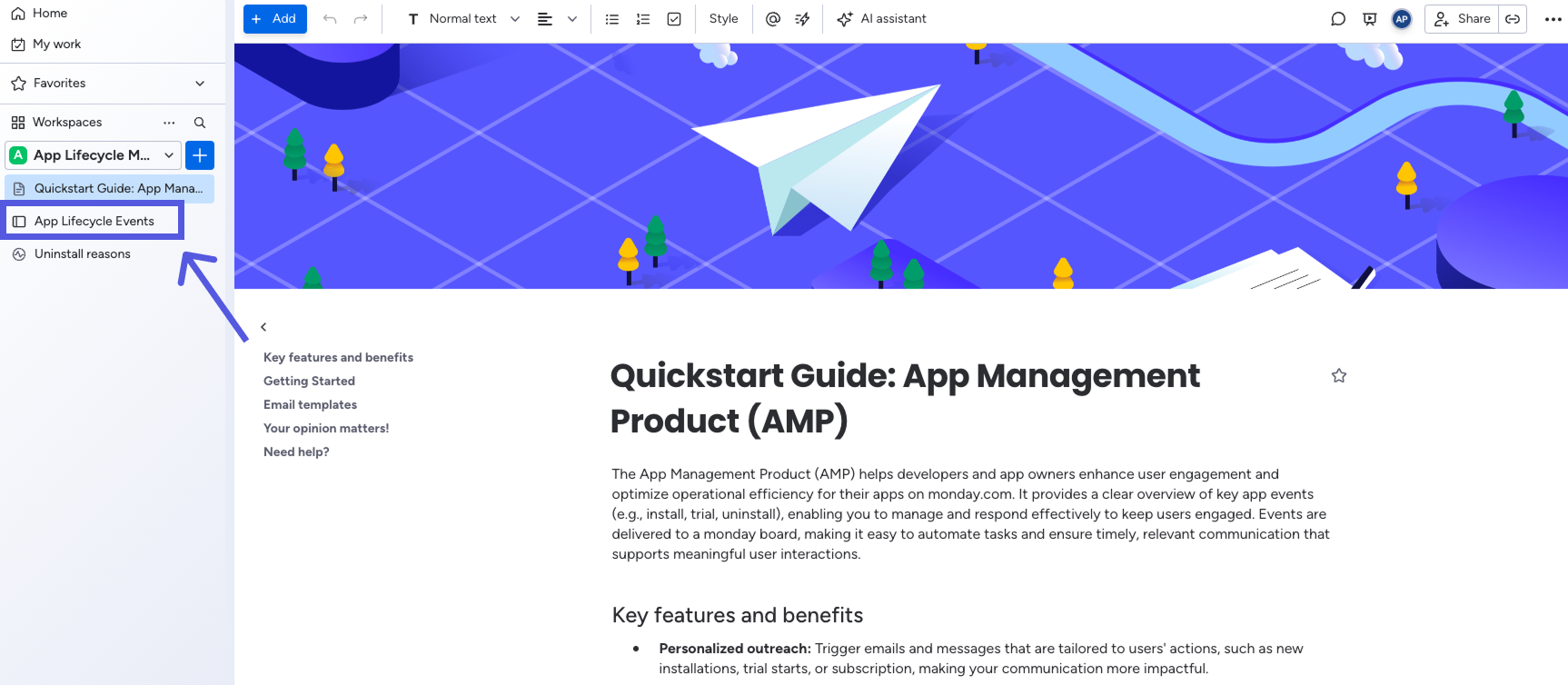
After installation, a folder called App Lifecycle Management appears in the left-side menu. It contains a quickstart guide and the App Lifecycle Events board where events are logged.
Before using AMP, configure the board's automations to connect your app and customize the pre-configured templates.
- Open the App Lifecycle Events board from the left-side menu.
- Click Automate in the top-right corner.
- Click on the When any event from App<Choose app> is triggered create an item automation.
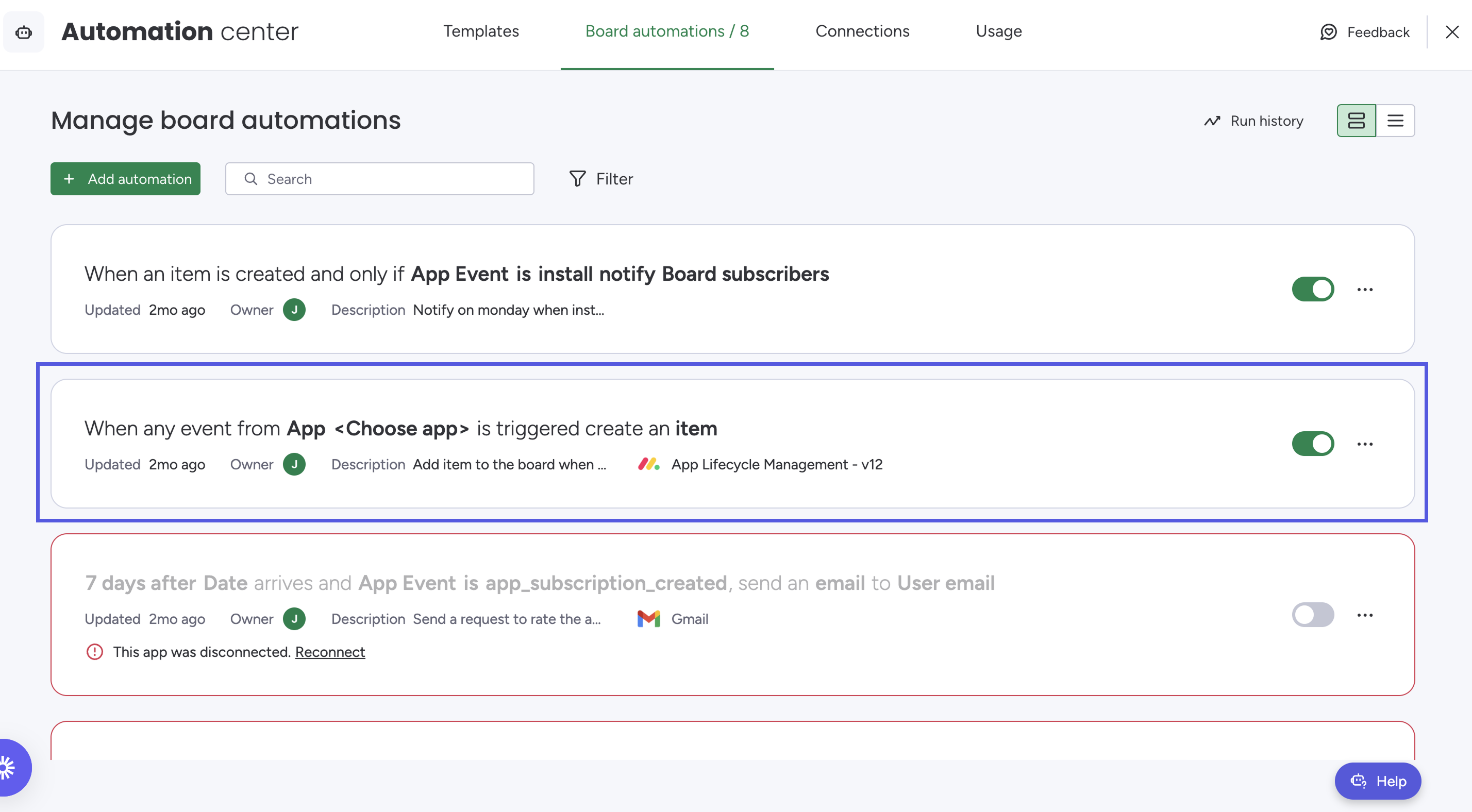
- Connect the app you want to track.
- Click Update automation.
- Customize and activate the email template automations according to your app's needs and branding guidelines.
Activate Churn reasons
Follow these steps to activate the Churn reasons functionality:
- Click the plus button (+) next to your workspace name.
- Select Apps from the dropdown menu.
- Click on Uninstall reasons.
Updated 10 months ago