
Migration guide
As part of the migration of automation features, we've built a migration wizard to make the process as seamless as possible.
It automatically converts:
- Field Types → Field for automation block or Credentials feature
- Blocks (Actions and Triggers) → Automation block
- Recipe Templates → Automation template
This guide walks you through migrating your Integration for sentence builder app feature to the new monday workflows infrastructure using the wizard.
How to migrate
Prerequisites
Before starting, make sure:
- Your app has at least one Integration for sentence builder feature
- You’ve created a draft app version (migration cannot run on live versions)
Step 1: Access the migration wizard
- Open the Developer Center.
- Select the relevant app.
- Under Build, click Features.
- Locate the Integration for sentence builder feature(s) you want to migrate.
- Click Start migration. This opens a migration modal.
Step 2: Confirm migration details
In the migration modal, you’ll see a list of all feature instances that will be migrated, including their name and type (field types, blocks, and recipes).
Each instance will be migrated into its own independent app feature in the new infrastructure. After migration, you can delete any redundant migrated features if needed.
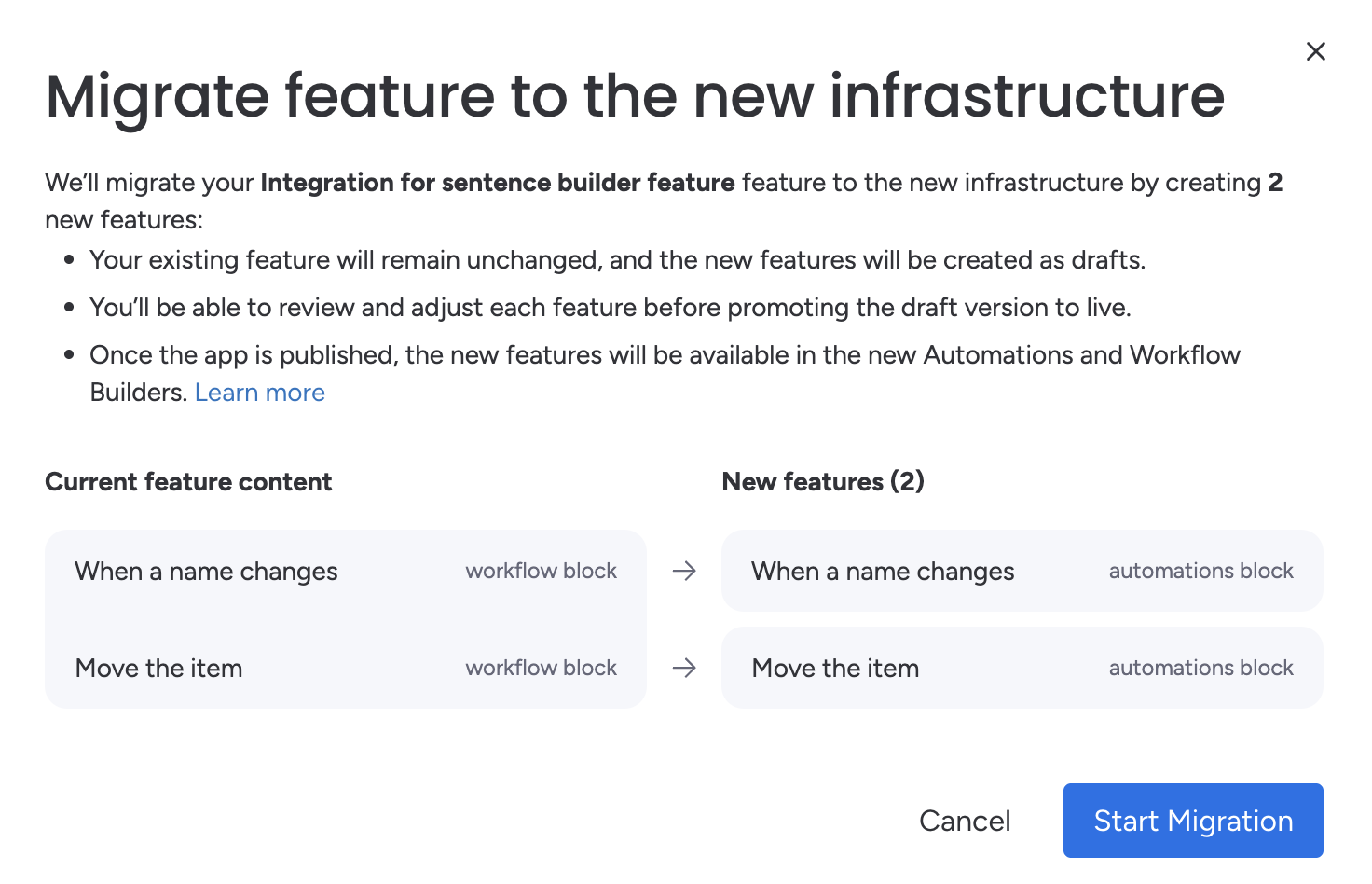
Review the list carefully, then continue.
Step 3: Start the migration
Click Start Migration to initiate the process.
The migration runs asynchronously. While it’s in progress, we recommend waiting until it completes before continuing to work on your app.
Step 4: Review results
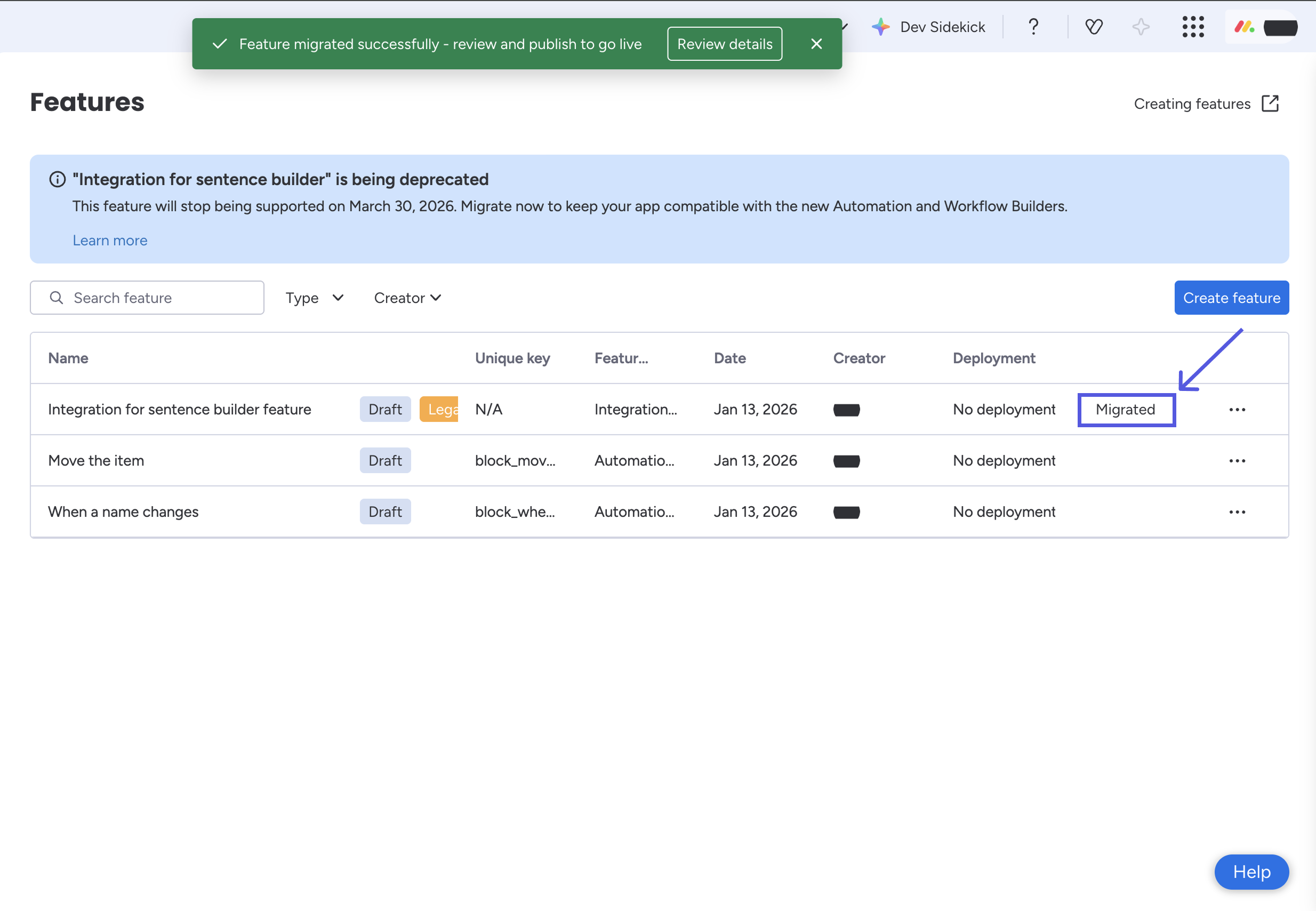
When the migration completes:
- A completion banner appears
- The feature label changes to Migrated
View migration details
- Click Migrated to open the feature migration details.
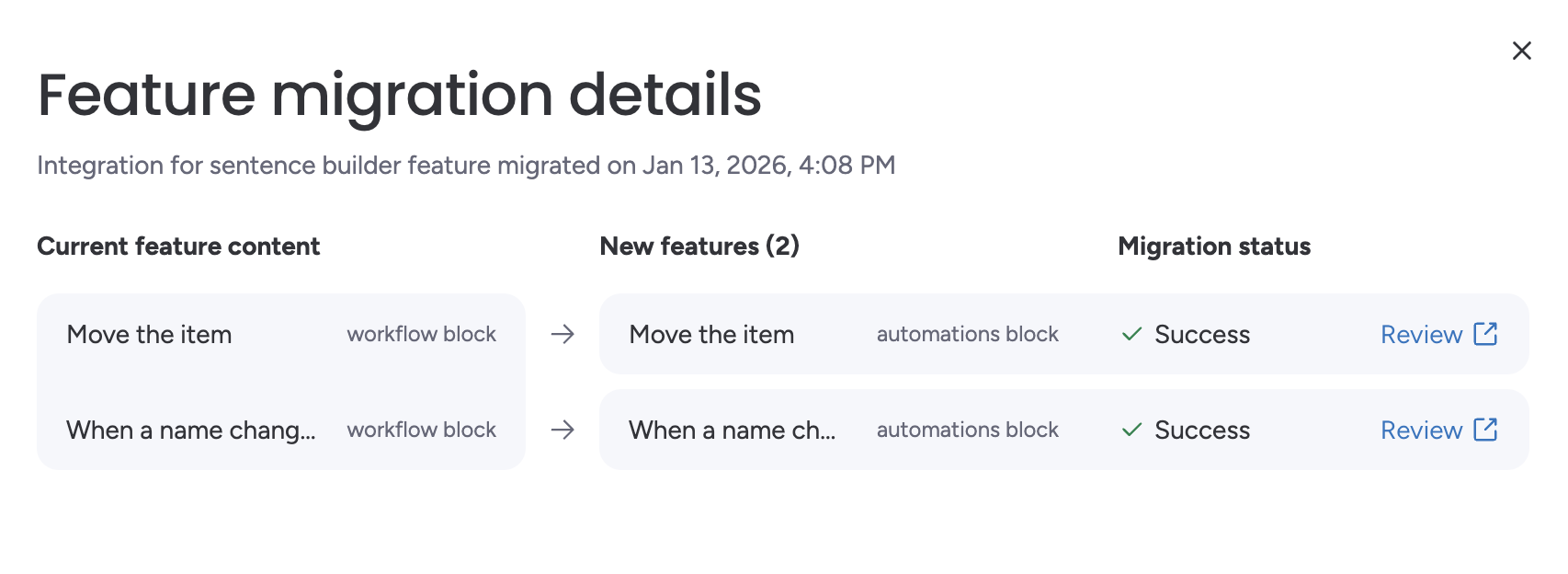
- Review the details on the modal. Each component from your integration is listed, along with its migration status.
| Status | Description | Next Steps |
|---|---|---|
| Success | Block successfully migrated | Click Review to view the new feature |
| Failed | An error occurred | Review the error details and retry |
Deprecated API payload mode
Migrated features use a compatibility mode called "Uses deprecated API payload" to avoid requiring immediate backend changes.
When this flag is enabled, your Automation blocks and Field for automation blocks continue to receive the legacy payload format.
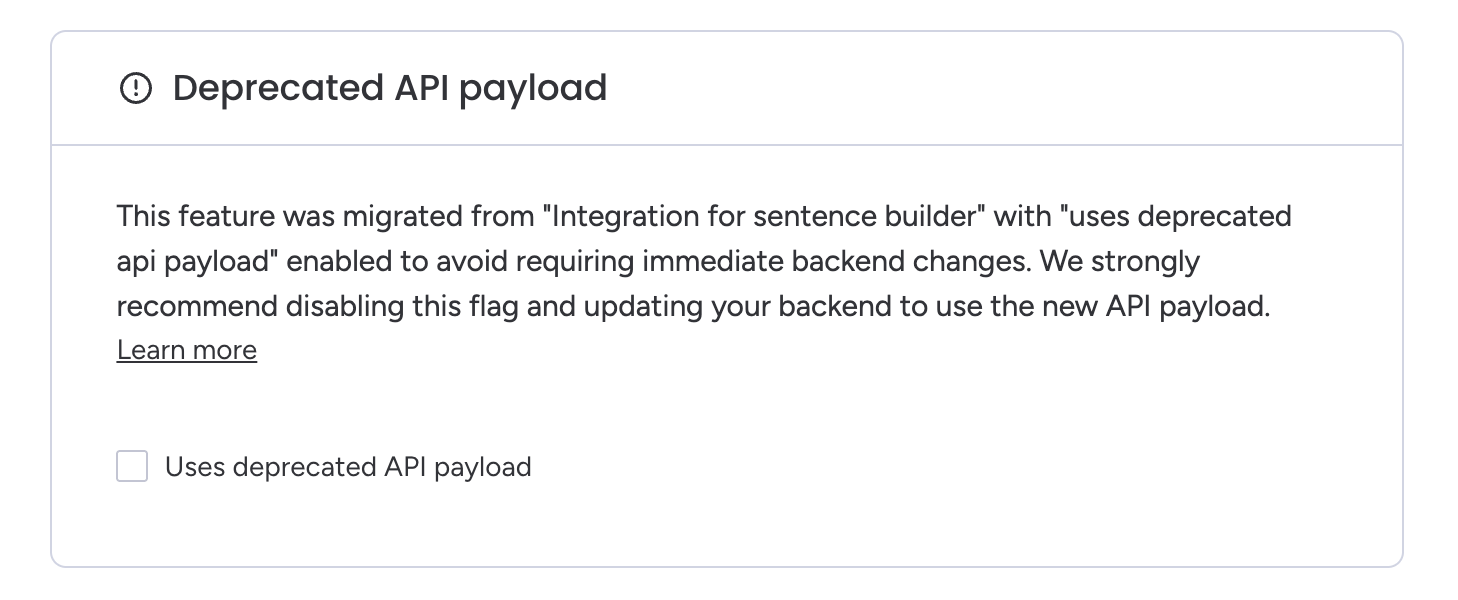
This allows your existing backend implementation to keep working immediately after migration, without requiring changes upfront.
Limitations
Blocks operating with this flag enabled may experience:
- Slower execution: Additional processing overhead is required to transform payloads between formats
- Limited support for new features: Some new capabilities in monday workflows may not be available when using the deprecated payload
- Potential edge case issues: Certain behaviors from the legacy infrastructure may not translate perfectly to the new workflows infrastructure
Recommended action
We strongly recommend disabling this flag and updating your backend to support the new API payload format.
- Open your migrated Automation block or Field for automation block in the Developer Center.
- Uncheck Uses deprecated API payload.
- Test the block and review the new payload format.
- Update your backend endpoints to handle the new format.
Step 5: Test your blocks
After migration, test your migrated blocks before publishing:
- Verify that the new features appear in the Automation Builder
- Configure automations using your migrated blocks
- Trigger the automations and confirm your backend behaves as expected
See the Test your blocks guide for detailed testing steps.
Re-migrate app features
You can re-run the migration at any time to:
- Sync changes to your original Integration for Sentence Builder feature
- Retry entities that previously failed
- Reset migrated features to their original state
Re-running the migration overwrites any changes you've made. If you've manually edited a migrated Automation block or Field for automation block, those changes will be replaced with the configuration from the original Integration for Sentence Builder.
How to re-run the migration
- Locate the original Integration for sentence builder feature.
- Click the three-dot menu on the right side.
- Select Migrate to new features.
- Review the migration details and click Start migration.
Troubleshooting
Walk-through video
Error details
| Error Type | Description | Action |
|---|---|---|
| Retryable | A temporary failure (e.g., network, timing) | Click Retry. |
| Data Issue | Configuration problem in the source data | Fix the issue and retry. |
| Unsupported Feature | Feature not supported in the new infrastructure | Manual configuration required (e.g., Authorization URL). |
| Internal Error | An unexpected system error | Wait before retrying the migration. If the error persists, contact our support team. |
Updated 9 months ago