
Sidekick tool
Build a tool that can be invoked by monday.com's digital agent, sidekick
The Sidekick tool app feature lets you expose custom actions to sidekick, monday.com's AI-powered digital worker. Tools define the actions sidekick can take on behalf of a user in response to natural-language requests.
By building tools, you extend monday.com's built-in AI capabilities and make your app usable through conversation without requiring users to navigate menus, configure automations, or switch contexts.
Background
Sidekick
Sidekick is monday.com's AI-powered digital worker. It operates inside your workspace and helps users complete tasks quickly and efficiently by combining conversational understanding with live actions.
It understands the user's context, monday.com's core data model, and connected apps and services. Using this context, it can:
- Write and summarize content
- Answer questions based on board context
- Search the web for additional information
- Take action via connected apps and services
Think of it as a conversational interface that enables users to complete tasks in monday.com without needing to switch tabs or navigate complex workflows.
Tools
Sidekick can perform many tasks natively, but it's limited to actions available within the monday platform. Tools extend those capabilities.
A Sidekick tool app feature exposes your app's functionality to sidekick, so it can perform actions on behalf of users using natural language. From a user's perspective, tools make your app accessible through conversation, allowing them to interact with your product naturally and in context.
Designing effective sidekick toolsHow you structure your tools directly impacts how often Sidekick selects them and how accurately they run. Before building, review the Sidekick tools best practices guide.
Tool structure
A tool is comprised of automation blocks that run when the tool is invoked. When sidekick determines that a tool is relevant, it selects a workflow block and executes it. See the Action Blocks Reference for the full API reference.
How does Sidekick decide to run my tool?
Sidekick decides whether to execute a tool by comparing the user's conversation with titles and action-based descriptions of all available tools. It then parses the user's chat to extract inputs and identify relevant blocks. It passes the user's inputs to the workflow block infrastructure, which will handle the API call to your block.
To run a block, monday.com sends an HTTP request to your block's Run URL. Your endpoint must:
- Complete the block's action
- Return structured output synchronously
- Respond quickly so Sidekick can continue the conversation
Tools are invoked one block at a time. Long-running, asynchronous, or event-driven workflows are not supported. Before execution, Sidekick will pause to request explicit user confirmation.
Unsupported blocks
Not supported
To ensure a good user experience, certain blocks can't be used as tools.
| Block Type | Reason |
|---|---|
| Trigger blocks | Sidekick operates in active conversations, not event-based workflows |
| Async blocks | Tools must return results in real-time |
Temporarily unsupported
| Block Type | Reason |
|---|---|
| Object fields with dependencies | Fields whose structure depends on external data (e.g., Jira project-specific fields) are temporarily not supported, but they will be added in the future |
Getting started
Prerequisites
- At least one automation action block
- Use the provided
shortLivedTokento authenticate requests to monday.com APIs - Third-party authentication configured using the credentials field (if your block accesses external services)
Step 1: Create a Sidekick tool feature
- Create an app or open an existing one.
- Add a new Sidekick tool app feature.
Step 2: Configure the feature
-
Provide a clear title and description for your tool. These tell Sidekick when your app should be used.
-
Select Add Automation Blocks and choose one or more blocks.
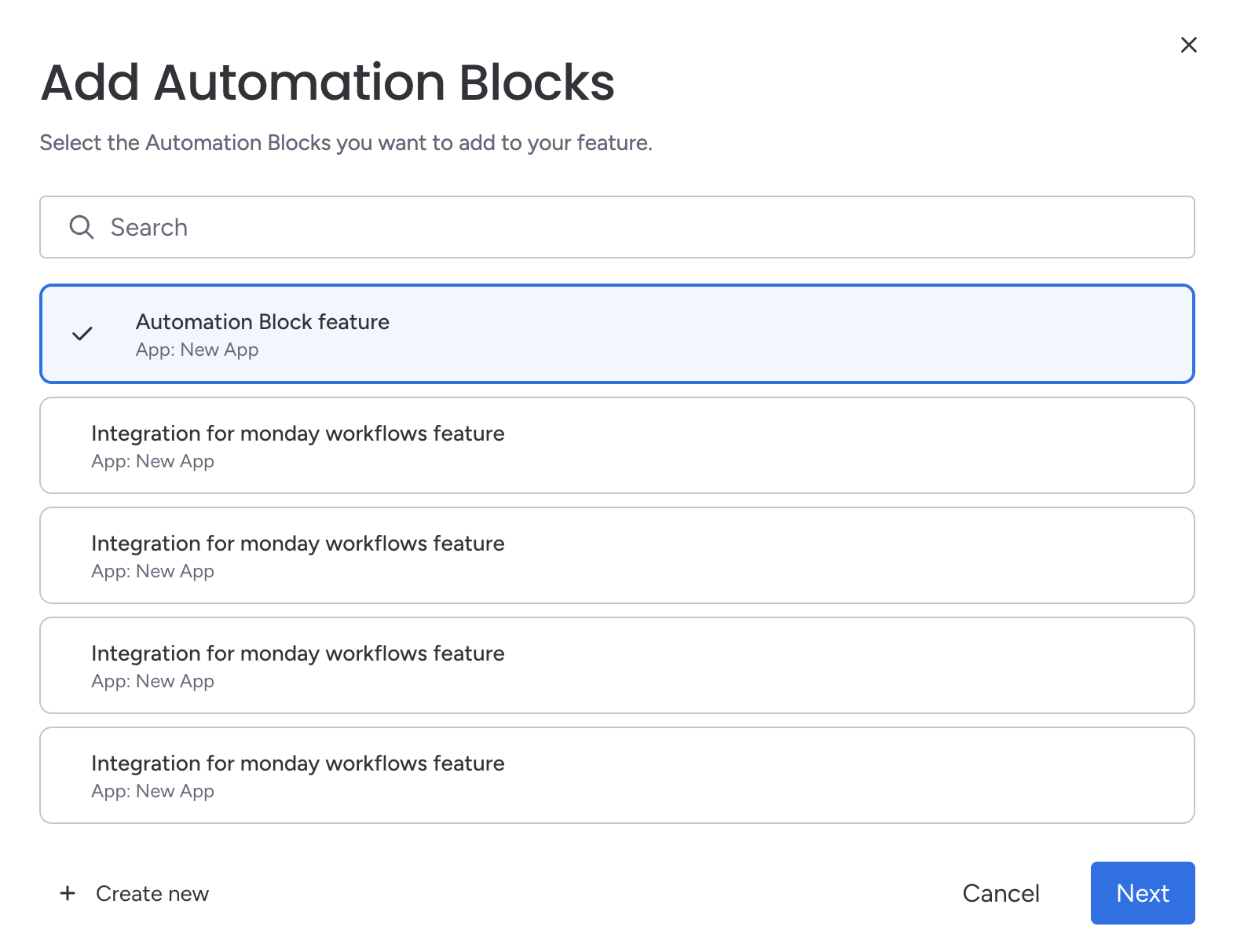
Choose a block to add to your AI Agent Tool
Step 3: Create and configure blocks
- Click Add Automation Blocks. This will open a block configuration popup.
- Select an existing block, or click Create New in the bottom-left corner. This opens a new tab for configuring the block.
- In the new tab, you can configure the block's basic details, deployment information, fields, and API configuration. The provided configurations directly impact how Sidekick selects and executes actions.
Block titles and descriptions are critical for tool executionA tool is defined by the automation blocks it contains. When Sidekick determines that a tool is relevant, it relies on each block's title and description to understand what actions are available and which block to run.
Use clear, descriptive, action-based titles and descriptions that explain:
- What the block does
- When it should be used
- What problem it solves
For fields, descriptions should clearly document accepted values, usage, constraints, and formatting requirements. This helps sidekick correctly extract inputs from the conversation and execute the block as intended.
- Once configured, click Save changes.
- Return to the original tab and connect the new block.
Enabling your tool in sidekick
- Open sidekick on a board or item.
- Click the Tools button.
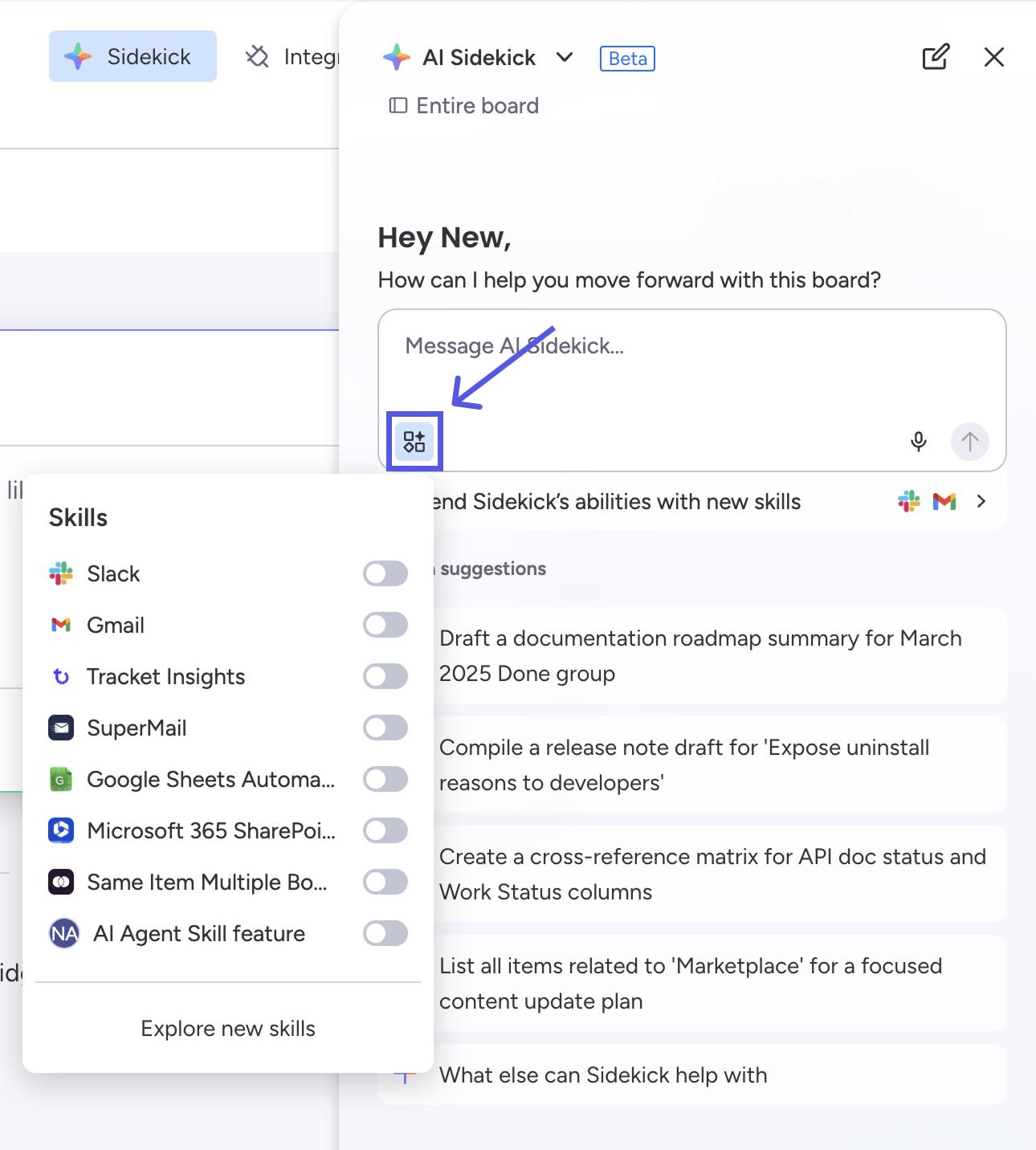
Tools button in the sidekick menu
- Find your tool and toggle it on.
- If prompted, authenticate any third-party accounts (e.g., Google Drive or Slack).
Example
We've built a set of examples demonstrating basic concepts of the Sidekick Tool feature:
- Basic workflow block APIs
- Storing authentication profiles
- Integration with Mailchimp and GitHub APIs
View the examples on GitHub.
Updated 6 months ago